Monday, February 28, 2011
Visual Studio Live! is coming up soon (April 18-22) in Las Vegas
If you’ve never been to Visual Studio Live, it offers developers, programmers, software engineers and architects an unbiased blend of practical and immediately-applicable training in Visual Studio, Silverlight, WPF, .NET and more. Plus, there will be 2 new tracks on mobile development and HTML5 this year! Check out the Visual Studio Live! Agenda at http://bit.ly/VSLiveTrks.

Legacy SourceSafe: How To Find Checked Out Files By User
If you still happen to be using Microsoft SourceSafe, stop and use Team Foundation Server ;) No all kidding aside, you may still use VSS or be ready to migrate to a newer platform like TFS and need to do some cleanup or preparation first. One common task is to find out all of the files checked out by an individual user.
You can accomplish this using the SS.exe tool that is installed alongside SourceSafe. It is located in the following directory:
C:\Program Files\Microsoft Visual Studio\VSS\win32
To open the tool, open a command prompt (I used Visual Studio .NET's Command Line Tool) and change directories to the location of SS.exe like below (if your files do truly exist on the C:\ drive):
CD C:\Program Files\Microsoft Visual Studio\VSS\win32
Now you are ready to issue commands to the SS.exe tool. You might wonder why you can’t just open it directly, but if you try only the screen flashes and the VSS help for the tool is opened. You must run commands against the tool in an existing command window session.
The command to fins all checked out files in VSS by user is as follows:
ss.exe Status $/ -R -U <username>
The 'Status' command extracts checked out file information, the '-R' switch dictates the search will be recursive to subprojects, and the "-U" switch specifies a user name. So if we had a username "jsmith" we could update the command to be more specific as follows:
ss.exe Status $/ -R -U jsmith
Upon pressing enter, please be patient. The search process can take quite some time, especially if there are a lot of files in VSS. The result set will show the project and files checked out by the user specified. If needed, you can copy all of the results into notepad, by right-clicking on the window title, and selecting Edit -> Select All ...and then Edit -> Copy.
For more detailed information on the SS.exe command tool and its Command Options, please check out the links below:
MSDN: Command Options
MSDN: SS Utility
You can accomplish this using the SS.exe tool that is installed alongside SourceSafe. It is located in the following directory:
C:\Program Files\Microsoft Visual Studio\VSS\win32
To open the tool, open a command prompt (I used Visual Studio .NET's Command Line Tool) and change directories to the location of SS.exe like below (if your files do truly exist on the C:\ drive):
CD C:\Program Files\Microsoft Visual Studio\VSS\win32
Now you are ready to issue commands to the SS.exe tool. You might wonder why you can’t just open it directly, but if you try only the screen flashes and the VSS help for the tool is opened. You must run commands against the tool in an existing command window session.
The command to fins all checked out files in VSS by user is as follows:
ss.exe Status $/ -R -U <username>
The 'Status' command extracts checked out file information, the '-R' switch dictates the search will be recursive to subprojects, and the "-U" switch specifies a user name. So if we had a username "jsmith" we could update the command to be more specific as follows:
ss.exe Status $/ -R -U jsmith
Upon pressing enter, please be patient. The search process can take quite some time, especially if there are a lot of files in VSS. The result set will show the project and files checked out by the user specified. If needed, you can copy all of the results into notepad, by right-clicking on the window title, and selecting Edit -> Select All ...and then Edit -> Copy.
For more detailed information on the SS.exe command tool and its Command Options, please check out the links below:
MSDN: Command Options
MSDN: SS Utility
Wednesday, February 16, 2011
Workaround For VS.NET ASP.NET Design Tab Not Rendering Controls
As of recent, most all of the projects I have been working on are in VS.NET 2010 using .NET Framework 4.0, and several are upgrades from .NET Framework 3.5 VS.NET 2008 solutions. I rarely use the 'Designer' tab to preview the generated controls of my ASP.NET pages, but in some instances I want to see the wizard of a control for configuration (i.e. Object Data Source Control). Not that there isn't code I couldn't just create by hand, but sometimes it is faster to have the code auto-generated for me. In this case I needed to have the control render in Design view.
On this note I will say I am not a big fan of the 'Design' tab to view auto-generated pages. I do not believe VS.NET uses the same rendering engine to show the auto-generated pages as is when the page is rendered in IIS. Therefore early on I found inconsistencies and nuances that showed visual differences between the two (design and run time), so I all but abandoned using the IDE 'Design' view. In fact I think one becomes a more proficient ASP.NET and web developer in general when you can begin to visualize the web pages during coding without needing a 'picture' to see after every line of code is written. Then run the page either in either the local dev server through VS.NET or in IIS to have it render properly, and then use any of the following to break down a page when needed: IE Developer Tools (IE), FireBug Lite (IE or FireFox), Chrome Developer Tools (Chrome).
Back to the problem at hand - I noticed that ALL of my pages (content pages of a single simple Master page) show the message "response is not available in this context" for all of my controls when accessing via the design view. I had tried deleting the page from my project, adding a new page, and copying back in the source and code; same error. I also tried cutting out controls 1 at a time, and clicking "Refresh" in the designer but that was not working either. Clearing all cached pages in the Temporary ASP.NET directories did fix the problem either.
Having all of my pages with the same issue, helped direct me to a class that all pages were inheriting from. In this class there is a method to Override the OnInit() method to run some common functionality. Within this method there was code to set properties on the HttpResponse object. Therein lies the problem. Making calls to manipulate the HttpResponse object and getting the error message: "response is not available in this context".
The fix is simple and straight forward. One way would be just to comment out the code, but this has its downside with no explanation needed. I wanted something more maintenance free. There was a better solution: if there is NO HttpContext avalaible, then do not attempt to access it, or the HttpResponse object. While in the VS.NET IDE and viewing the 'Design' tab, it makes sense that the HttpContext is not available and therefore any related code should be skipped.
On this note I will say I am not a big fan of the 'Design' tab to view auto-generated pages. I do not believe VS.NET uses the same rendering engine to show the auto-generated pages as is when the page is rendered in IIS. Therefore early on I found inconsistencies and nuances that showed visual differences between the two (design and run time), so I all but abandoned using the IDE 'Design' view. In fact I think one becomes a more proficient ASP.NET and web developer in general when you can begin to visualize the web pages during coding without needing a 'picture' to see after every line of code is written. Then run the page either in either the local dev server through VS.NET or in IIS to have it render properly, and then use any of the following to break down a page when needed: IE Developer Tools (IE), FireBug Lite (IE or FireFox), Chrome Developer Tools (Chrome).
Back to the problem at hand - I noticed that ALL of my pages (content pages of a single simple Master page) show the message "response is not available in this context" for all of my controls when accessing via the design view. I had tried deleting the page from my project, adding a new page, and copying back in the source and code; same error. I also tried cutting out controls 1 at a time, and clicking "Refresh" in the designer but that was not working either. Clearing all cached pages in the Temporary ASP.NET directories did fix the problem either.
Having all of my pages with the same issue, helped direct me to a class that all pages were inheriting from. In this class there is a method to Override the OnInit() method to run some common functionality. Within this method there was code to set properties on the HttpResponse object. Therein lies the problem. Making calls to manipulate the HttpResponse object and getting the error message: "response is not available in this context".
The fix is simple and straight forward. One way would be just to comment out the code, but this has its downside with no explanation needed. I wanted something more maintenance free. There was a better solution: if there is NO HttpContext avalaible, then do not attempt to access it, or the HttpResponse object. While in the VS.NET IDE and viewing the 'Design' tab, it makes sense that the HttpContext is not available and therefore any related code should be skipped.
One interesting thing I found in researching this issue was that cleaning the solution (which clears the \bin of all compiled code) and then viewing the page in the 'Design' tab with the above Response code only (no "If HttpContext.Current IsNot Nothing"), the page would display. As soon as I built the solution, and did not have the workaround above, I would go back to receiving the "response is not available in this context" error. So the IDE must be rendering the page differently based on if it has been compiled or not already, and possibly only showing the rendered page strictly on HTML and not on any precompiled code-behind in this situation. This is lower level details of the VS.NET IDE that I am unsure about. The main point here is to use the logic in the code example above to be more explicit about when that code will be ran, and when it will be skipped.
 'Do not attempt to access the HttpContext if it does not exist (i.e. in Design mode of IDE)
 If HttpContext.Current IsNot Nothing Then
   'Do not cache the web page
    Response.CacheControl = "no-cache"
 End If
Sunday, January 30, 2011
Spell Checker Extension For VS.NET 2010
OK there is a really useful extension available for free to VS.NET 2010 named "Spell Checker". It shows misspelled words within commented sections with the traditional red squiggly line under the word as seen in Office products. Obviously correctly spelled words are not critical to an applications performance, but well formed internal documentation that reads well such as commenting is important.
You can download it for free by going to Tools -> Extension Manager and then select 'Online Gallery' from the left-hand side. In the search box type in the top-right hand corner, type in "spell checker" and search. The 1st extension created by Roman Golovin and Michael Lehenl (thank you) named "Spell Checker" is the one to download and install (shown below).

As you can see below, just hover the mouse over the misspelled word for the little box to display, which upon clicking will bring up the properly spelled words. There is also the ability to "Add to dictionary" which is nice, because often many words we use are technical and not in the dictionary.
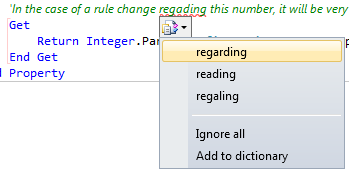
It can also be downloaded directly from the link below:
Spell Checker Extension for VS.NET
You can download it for free by going to Tools -> Extension Manager and then select 'Online Gallery' from the left-hand side. In the search box type in the top-right hand corner, type in "spell checker" and search. The 1st extension created by Roman Golovin and Michael Lehenl (thank you) named "Spell Checker" is the one to download and install (shown below).

As you can see below, just hover the mouse over the misspelled word for the little box to display, which upon clicking will bring up the properly spelled words. There is also the ability to "Add to dictionary" which is nice, because often many words we use are technical and not in the dictionary.

It can also be downloaded directly from the link below:
Spell Checker Extension for VS.NET
Wednesday, January 26, 2011
Use LINQ To Get The SUM Or Total Of A Property Value On An Object Collection
If you have an object collection say List(Of <T>) and you want to add up all of the values of a single property of the proper type (Integer, Double, etc.), you can do this using LINQ and a lambda expression. We will use the SUM LINQ Extension Method directly on the collection that implements IEnumerable(T), and provide it an anonymous function that takes the property value to be added together. So here is the code using an object collection which I had already populated previously:
The anonymous function takes a parameter which will represent the individual instance of the collection, and then uses the property designated to be iterated over and added to the total.
'Use the LINQ SUM Extension Method to iterate over the collection and extract the total.
Dim Total = MyDataCollection.Sum(Function(x) x.PropertyOnXToSumTogether)
Using Fiddler With VS.NET And The Local Web Development Environment 'Cassini'
If you use Fiddler to monitor traffic to your web sites, you have probably found it useful for debugging issues like 404's or 403's etc. However if you want to have Fiddler show traffic from sites you are debugging through your local VS.NET web development server, then you need to add a '.' period after the word 'localhost' in the URL. Also make sure to add it prior to the designated port as displayed below.

After refreshing the page, you can see the output in Fiddler.


After refreshing the page, you can see the output in Fiddler.

Monday, January 24, 2011
How To: Scroll To The Bottom of an ASP.NET Web Page After Postback
Not a post about bleeding edge technology here, but just a little technique I ran across here for ASP.NET web pages. I needed a way to have the focus shift to the bottom of a page after a button near the top of the screen was pressed. Unfortunately setting focus via Page.SetFocus(Me.BottomOfPageServerControl.ClientID) did kind of work, but only shifted to the top of the control, and the control had a large height. Therefore the scroll bar was still not at the bottom, and the resulting pertinent data in my situation was at the bottom of the page.
The solution? Place a server control at the bottom of the page with CSS properties that prevent it from physically being viewed, don't affect scroll bars, and yet can still have focus shifted to it.
So begin by placing an ASP.NET button (or any other small server control) at the bottom of your markup, and add some inline styling to be most compact and streamlined if you wish:
The solution? Place a server control at the bottom of the page with CSS properties that prevent it from physically being viewed, don't affect scroll bars, and yet can still have focus shifted to it.
So begin by placing an ASP.NET button (or any other small server control) at the bottom of your markup, and add some inline styling to be most compact and streamlined if you wish:
Notice above the styling places it off the page, but the button will not create any lengthy scroll bars, etc. Lastly, add the code server side on the 'Finally' of the button click event to shift focus to the bottom of the page:
<!--Button will render, but not actually be visible to the client-->
<asp:Button ID="ui_btnPageBottom" runat="server" Text="Button" style="margin-left:-999px;" />
That's it! I am sure there are at least 20 ways to do this, including a purely client side solution with JavaScript, but this was 2 lines of code to accomplish what I needed.
Try
  'Code
Finally
  'Regardless of outcome, set focus to the bottom of the page
  Page.SetFocus(Me.ui_btnPageBottom.ClientID)
End Try
Subscribe to:
Posts (Atom)