Showing posts with label VS Code. Show all posts

Wednesday, November 6, 2024

How to Nest Blazor's .razor Files in Visual Studio Code

When working with Blazor in Visual Studio Code, you may encounter some nuanced differences from working in Visual Studio, and would like greater feature parity. One such feature is the default file nesting as shown below from Visual Studio when it comes to Razor component files:

Visual Studio Code has the capability to nest files, but by default Blazor's files are not nested and appear in parallel. 

To update/fix this, we can update the 'File Nesting Patterns' in the Command Palette.

Open the Command Palette in Visual Studio Code by pressing Ctrl+Shift+P (PC) and then add the following search string for direct access: 

@id:explorer.fileNesting.patterns

Select 'Add Item' with the key: 

*.razor
and use the following Value:

${capture}.razor.cs, ${capture}.razor.css, ${capture}.razor.scss, ${capture}.razor.less, ${capture}.razor.js, ${capture}.razor.ts

You can add any applicable file extensions to the list above as needed. At this point you can close the settings and see the Blazor files nested correctly:

Tuesday, February 6, 2024

How to Fix the GitHub Copilot Chat Error: 'Cannot read properties of undefined (reading 'split')'

If you're using GitHub Copilot Chat within Visual Studio code, you may begin to see an error unexpectedly after an IDE update that reads as follows when using Copilot Chat:
Cannot read properties of undefined (reading 'split')

This is caused by the Copilot Chat extension requiring a reload which can be seen from the extensions menu:

Once selecting, 'Reload Required,' Visual Studio Code will reload, and Copilot Chat will begin working as expected again.

Wednesday, September 20, 2023

Leveraging IntelliSense for Azure DevOps YAML Pipelines in Visual Studio Code

If you're building out YAML pipelines for Azure DevOps (ADO) and don't wish to hand roll them in the online editor provided, you can instead build them in Visual Studio Code. The 1st thing you'll be hunting down though is IntelliSense and auto-complete assistance for your .yml pipeline code. Out-of-the-box, VSC doesn't have this support other than generic YAML language services so you'll want an extension. There is an extension for this and name of it is simply, 'Azure Pipelines' which can be found in the Marketplace


The issue is the Microsoft extension for the ADO pipelines is poorly rated at 2 out of 5 stars which made me wonder if it wasn't worth using. The good news is that rating isn't in reflection for a completely orphaned product as the latest commit was within a week of this writing. The main critique which I verified is after installation it just doesn't seem to do anything. However, with a single-step I got the primary functionality working as desired and have the IntelliSense and auto-complete features I needed.

The key is to manually switch the 'Language Mode' setting in the bottom-right hand corner to the proper value for the specific code file being created (or use the keyboard shortcut Ctrl + K M). Initially it will show 'YAML' which has been auto-detected, and in this mode none of the extension characteristics work. 


Click the dropdown and you'll get a selection of languages that can be set. Select, 'Azure Pipelines.'


Now the .yml file you're working on will have IntelliSense features, auto-complete, and hinting leveraging the installed extension which is helpful in creating pipelines.


Monday, April 1, 2019

Using Quokka.js for Real-Time Feedback in TypeScript

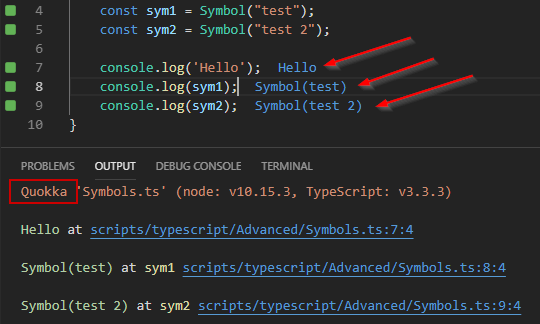
I'm always looking for cool VS Code extensions and Quokka.js certainly hits the spot. It provides real-time feedback on JavaScript and TypeScript directly in VS Code in a variety of forms. For example if you're testing some code via console.log, you can get the output directly inline to the right of the code which is awesome.

Once installed, all I needed to do was open the command pallet in VS Code (Ctrl+Shift+P) and select, 'Quokka.js: Start on Current File' as shown below:


After initiating the extension, as seen below I was getting live logging directly in the code.


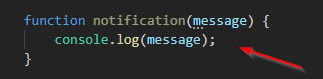
If there's a value not provided in the scope of the file, Quokka.js obviously can't produce an output and this was expected behavior:


There is quite a bit more functionality offered like code coverage assessment (as it pertains to code execution paths, not unit testing), and a provided value explorer. There is also a Pro edition with additional tools available.

Check out the links below to get started:

Quokka.js
VS Code Extension for Quokka.js